Router » History » Revision 10
« Previous |
Revision 10/22
(diff)
| Next »
Anonymous, 09/08/2021 09:27 PM
updating DHCP registrations
Router and Network Setup
I started my foray into custom networking using DD-WRT running on a Linksys WRT3200ACM. This worked well for a while but I noticed performance issues as my network grew. In October 2019 I decided to go all in and setup a pfsense router.
Router
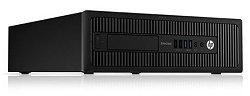
- HP EliteDesk 800 G2 SFF Desktop PC
- Intel Core i5-6600 (quad core @ 3.3 GHz)
- 8GB RAM
- 128GB SSD HDD
- Running pfsense: 2.5.2 (based on FreeBSD 12.2)
| Interface | MAC | Reserved IP | Notes |
| WAN | dc:4a:3e:81:f5:49 | 10.0.0.188 | attached to DMZ on FIOS router |
| LAN (em0) | 00:15:17:f3:65:95 | 192.168.1.1 (static) | top port of Intel NIC |
| OPT1 (em1) | 00:15:17:f3:65:93 | ''n/a'' | not currently connected |
| 10G_LAN (mlxen0) | 24:8a:07:e3:14:80 | 10.250.1.1 (static) | Mellanox fiber card |
NOTE: be sure to enable powerd (System > Advanced > Miscellaneous). See: https://docs.netgate.com/pfsense/en/latest/book/config/advanced-misc.html#power-savings
Configuration
To run 10G LAN as a separate VLAN:
- Go to Interfaces > Interface Assignments > VLANs and define the VLAN (17) on `mlxen0`.
- Go back to Interface Assignments and create an interface for the 10G LAN if one doesn't already exist. For "Network port" select VLAN17 on mlxen0. (actually this doesn't work, just select `mxlen0`)
- Go to Firewall > Rules > 10G_LAN and create an "Allow all" rule for the interface:
- ALLOW IPv4; protocol any; src 10G_LAN net port any to dest 10G_LAN net port any
- Also create rule to block LAN traffic on 10G net:
- BLOCK IPv4; protocol any; src any to dest LAN net
- Add similar rule to LAN to block 10G_LAN traffic
Main Switch
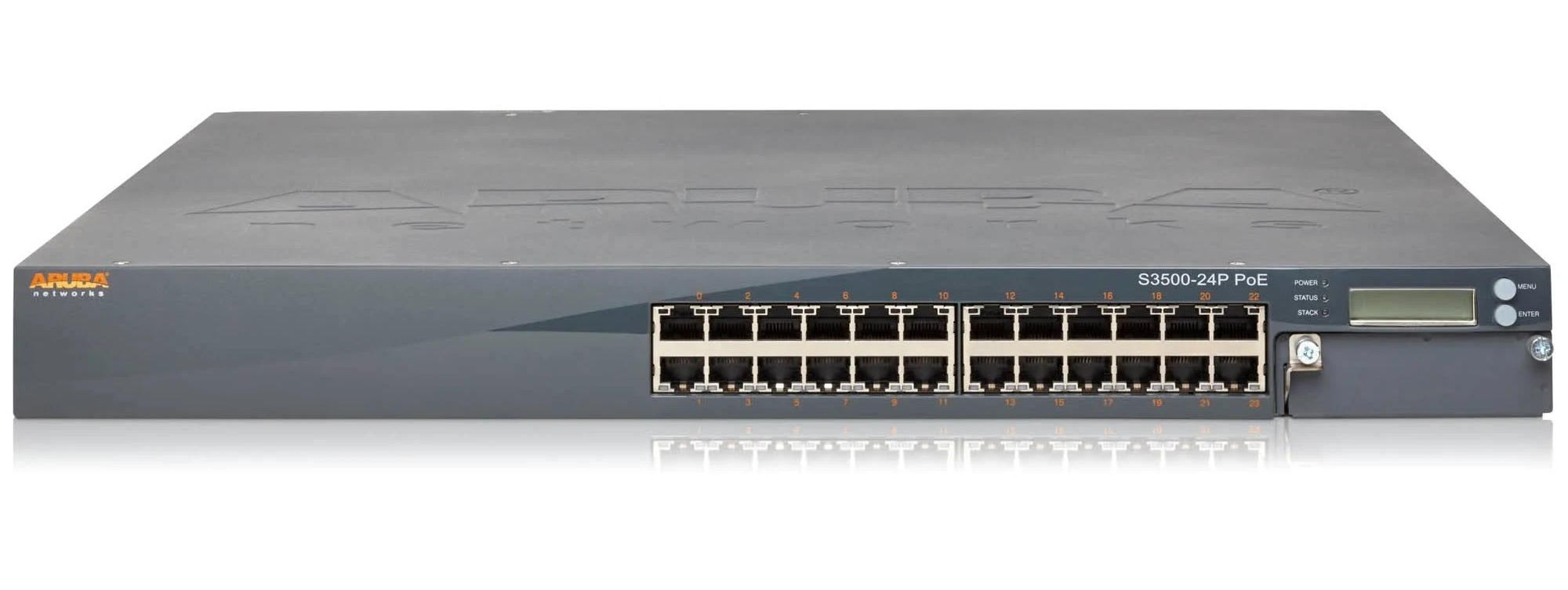
- 24 port 1000-BaseT POE ports
- 4 SFP+ (10G) ports
Reset Instructions
If switch configuration needs to be reset follow these instructions:
- Power On and boot the Mobility Access Switch.
- Connect a client device (such as a laptop) to the Mobility Access Switch using any Ethernet port in the front. Ensure that DHCP is enabled on the client device and that it is not connected to any other network.
- For the S2500 and S3500 Mobility Access Switch, perform the following steps: # Press the LCD Menu button until Maintenance is selected. # Press the LCD Enter button to enter the Maintenance menu. # Press the LCD Menu button until GUI Quick Setup is selected. # Press the LCD Enter button to activate the GUI Quick Setup mode. Quick-setup invoked... appears on the LCD screen.
- For the S1500 Mobility Access Switch, press and hold the MODE button for 10 seconds or until the four mode status LEDs turn solid green to activate the GUI Quick Setup mode.
- Confirm that the client device has the IP address in the following range 172.16.0.[1-253] and the DHCP server has the IP address 172.16.0.254.
- Open a web browser and enter 172.16.0.254 into the address bar to launch the WebUI Startup Wizard.
- Follow the on-screen prompts to fill in the required fields to complete the configuration (see Table 1).
Disable Stack Ports
This is how you disable the stack ports so you can use them as regular ports.
- Log into switch:
- Type enable and hit enter. Enter enable password when prompted.
- Enter the commands below:
Configuration
- If running the 10G network as a separate VLAN, under "Vlans" define VLAN 17 and give switch an unused IP: 10.250.1.10/255.255.255.0
- Next under "Ports" on the "Switching" tab define a profile for the 10G LAN and associate all 10G ports with it:
Name Switch Mode Access VLAN Native VLAN Allowed VLANs Association 10G_LAN access 17 1 1-4095 GE-0/1/0;GE-0/1/1;GE-0/1/2;GE-0/1/3
10G Supplemental Switch
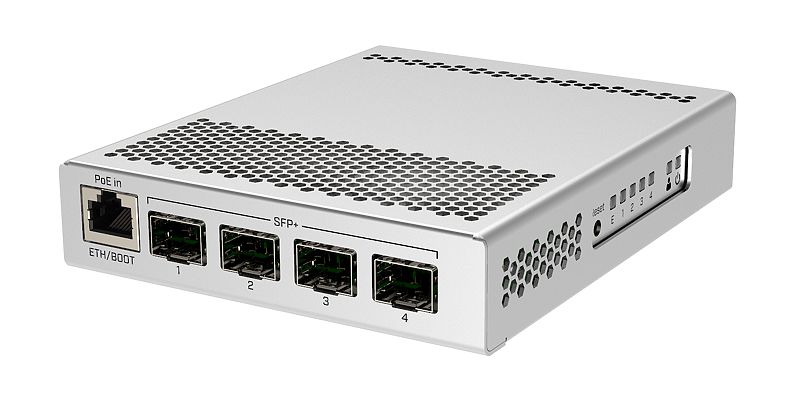
NOTE: Switch has two operating system options. SWOS is much simpler and therefore preferred for this application. Note that holding the reset button while powering only resets the RouterOS configuration not the SWOS configuration. To reset SWOS boot into RouterOS and navigate to the terminal, then enter this command:
Also to set the boot OS: System > Routerboard > Settings > Boot OS
Reset Instructions
- Disconnect all network ports. Disconnect power, using tip of mechanical pencil press reset button and hold. Reconnect power. When green light flashes several times release the reset button.
- Switch will reboot into RouterOS.
- To connect connect to MGMT (1G) port to laptop. Set static address on laptop to 192.168.88.2/255.255.255.0 with gateway 192.168.88.1. Open web browser and navigate to 192.168.88.1.
- Enter basic details, including DHCP setup.
- Click Terminal button in upper right corner.
- Enter this command to reset SwOS:
- Enter this command to reset SwOS:
- Next navigate back to Webconfig to change boot configuration: System > Routerboard > Settings > Boot OS and set SwOS.
- Finally click the Reboot option on the side menu.
- Disconnect from laptop and connect MGMT port back to regular network. After reboot switch should be accessible at DHCP reservation address: 192.168.100.2.
- Default credentials are: admin/<no password>
Configuration
To use 1G port as management port go to RSTP tab and uncheck the checkbox next to MGMT. In Port Isolation tab, isolate MGMT from other ports.
Wireless AP
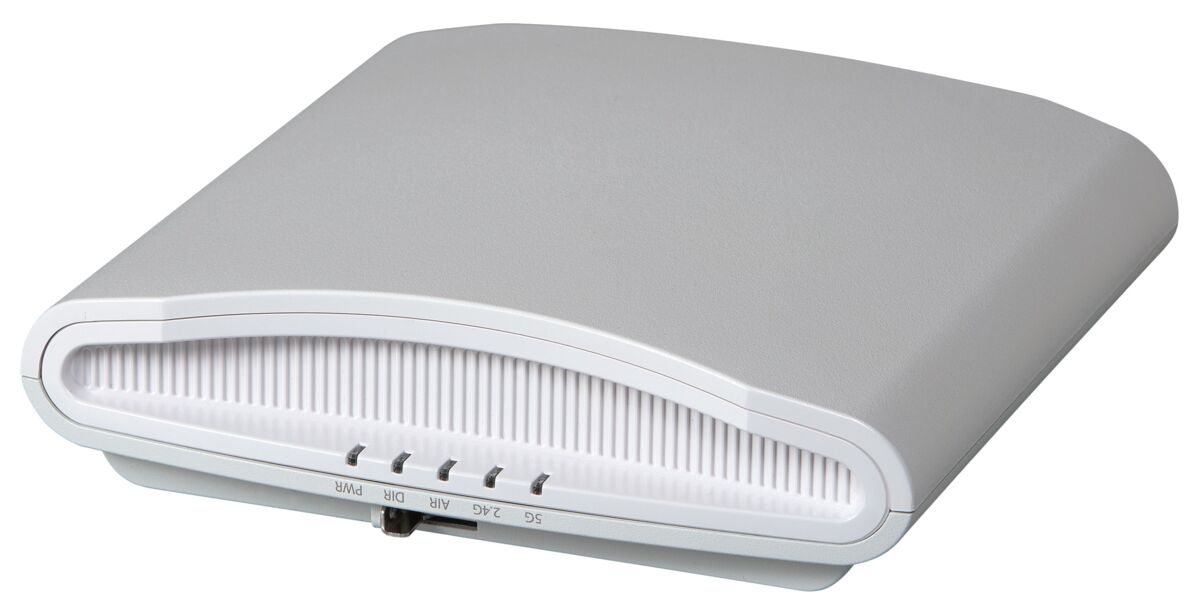
Wiresless Networks
- 57752d54616e67204c414e - legacy 5 GHz - WPA2
- 4162726168616d204c696e6b737973 - legacy 2.4 GHz - WPA2
- Weyland-Yutani Corporate - 5 GHz/2.4 GHz - WPA3/WPA2
DHCP Registrations
pfsense Box- MAC: dc:4a:3e:81:f5:49
- IP: 10.0.188 (reserved)
Switch
| Device | MAC | Reserved IP | Hostname | Notes |
| Aruba S3500-24P | 00:1a:1e:16:1a:c0 | 192.168.100.0 (static) | aruba-s3500 | main network switch; POE disabled |
| Ruckus R710 | 58:b6:33:3b:17:e0 | 192.168.100.1 | r710 | primary WiFi AP (see note above) |
| MikroTik CRS305-1g-4s | cc:2d:e0:91:42:6e | 192.168.100.2 | mikrotik-switch-001 | 10G network switch; 1G for management |
| TP-Link Archer C2600 | 18:a6:f7:5f:2b:06 | 192.168.100.3 | archerc2600 | secondary WiFi AP |
Wireless Clients
| Device | MAC | Reserved IP | Hostname |
| Dell XPS 13 (wifi) | 28:b2:bd:39:07:92 | 192.168.4.2 | xps |
| phone | b4:f7:a1:8f:98:8d | 192.168.4.3 | g6-plus |
| workstation (wifi) | 10:f0:05:35:01:fb | 192.168.4.4 | enthoo-wifi |
| tablet | 84:55:a5:f7:3a:ec | 192.168.4.5 | galaxy-tab-s |
| MPD box | a0:88:69:8c:33:ef | 192.168.4.7 | CI320-wifi |
| Raspberry Pi 3b+ | b8:27:eb:ef:eb:a1 | 192.168.4.9 | rpi001 |
| Raspberry Pi Zero W | b8:27:eb:d9:78:8a | 192.168.4.10 | rpi-zw-001 |
| !ThinkPad T470 | f8:59:71:4e:ab:f6 | 192.168.4.12 | t470 |
| Raspberry Pi 3b+ | b8:27:eb:59:18:d2 | 192.168.4.14 | rpi002 |
| Raspberry Pi 4b | dc:a6:32:19:16:70 | 192.168.4.16 | rpi003 |
| new tablet | 70:1f:3c:cd:30:63 | 192.168.4.17 | galaxy-tab-a |
Wired Clients
| Device | MAC | Reserved IP | Hostname |
| Dell XPS 13 laptop | a0:ce:c8:03:a1:c9 | 192.168.8.2 | xps-eth |
| slingbox | 00:0d:c5:cf:0f:94 | 192.168.8.3 | slingbox |
| [[wiki:Workstation|workstation]] | 70:85:c2:39:83:67 | 192.168.8.4 | enthoo |
| [[wiki:CustomComputers/2012/Phalanx|file server]] | d0:50:99:51:75:a4 | 192.168.8.6 | phalanx |
| [[wiki:CI320|MPD box]] | 00:01:2e:58:d8:81 | 192.168.8.7 | CI320 |
| [[wiki:UltimateHTPC|HTPC]] | 74:d4:35:4f:4e:04 | 192.168.8.8 | atto |
| Raspberry Pi 3b+ | b8:27:eb:ba:be:f4 | 192.168.8.9 | rpi001-eth |
| [[wiki:CustomComputers/2018/Brutus|brutus]] | d0:50:99:46:c6:74 | 192.168.8.10 | brutus |
| !ThinkPad T470 | 54:e1:ad:33:0f:0a | 192.168.8.12 | t470-eth |
| file2 | d0:50:99:51:76:4c | 192.168.8.13 | file2 |
| Raspberry Pi 3b+ | b8:27:eb:0c:4d:87 | 192.168.8.14 | rpi002-eth |
| red-dwarf | 00:25:90:86:4e:e6 | 192.168.8.15 | red-dwarf |
| Raspberry Pi 4b | dc:a6:32:19:16:6f | 192.168.8.16 | rpi003-eth |
| [[wiki:CustomComputers/2020/RedOctober|red-october]] | b4:2e:99:a5:1e:f0 | 192.168.8.17 | red-october |
Printer Clients
| Device | MAC | Reserved IP | Hostname |
| HP Officejet Pro 8610 | 34:64:a9:5e:0e:62 | 192.168.10.1 | hp-pro-8610 |
Camera Clients
| Device | MAC | Reserved IP | Hostname |
| Reolink Argus Pro | 10:ce:a9:0b:e0:fe | 192.168.12.1 | cam001 |
| Reolink RLC-410-5MP | ec:71:db:65:c9:4c | 192.168.12.2 | cam002 |
House Clients
| Device | MAC | Reserved IP | Hostname |
| Ecobee Thermostat | 44:61:32:ac:17:cc | 192.168.14.1 | ecobee |
Work Clients
| Device | MAC | Reserved IP | Hostname |
| BL Machine | 70:85:c2:da:6c:3d | 192.168.20.1 | corsair |
IPMI Interfaces
| Device | MAC | Reserved IP | Hostname |
| [[wiki:CustomComputers/2012/Phalanx|phalanx]] | bc:5f:f4:fe:6b:cb | 192.168.208.1 | phalanx-ipmi |
| [[wiki:CustomComputers/2018/Brutus|brutus]] | bc:5f:f4:fe:7c:af | 192.168.208.2 | brutus-ipmi |
10G Network
The 10G network is setup as a VLAN (17) using `10.250.1.0/24` addressing. (I never could get the VLAN working).
| Device | MAC | Reserved IP | Hostname |
| [[wiki:CustomComputers/2012/Phalanx|phalanx]] | 0c:c4:7a:1f:00:ae | 10.250.1.2 | phalanx-10g |
| [[wiki:CustomComputers/2018/Brutus|brutus]] | 24:8a:07:e4:40:c1 | 10.250.1.3 | brutus-10g |
| [[wiki:Workstation|enthoo]] | 24:8a:07:e4:39:91 | 10.250.1.4 | enthoo-10g |
| file2 | 24:8a:07:e3:04:e1 | 10.250.1.5 | file2-10g |
Main Switch - Port Assignments
Copper ports:
| Port | Device / Branch |
| 0 | living room - top port - AP (POE enabled) |
| 1 | downstairs bedroom and rec room |
| 2 | office (front room) |
| 3 | middle bedroom (work office) |
| 4 | living room - middle port |
| 5 | unused |
| 6 | unused |
| 7 | unused |
| 8 | unused |
| 9 | unused |
| 10 | unused |
| 11 | pfsense (uplink) |
| 12 | brutus |
| 13 | brutus-ipmi |
| 14 | phalanx |
| 15 | unused |
| 16 | unused |
| 17 | unused |
| 18 | unused |
| 19 | unused |
| 20 | unused |
| 21 | unused |
| 22 | unused |
| 23 | unused |
Port assignments (SFP_ fiber):
| Port | Device / Branch |
| 0 | office (to !MikroTik Switch) |
| 1 | phalanx 10G |
| 2 | brutus 10G |
| 3 | pfsense LAN (router) |
Backup Switch
- TP-LINK TL-SG1016D - 24 port "dumb" switch
Resources
Updated by about 5 years ago · 22 revisions