BMW Software
Dump of all I know
Overview
(this is taken from the Guide to ISTA document)
What does ISTA stand for? ISTA is a workshop system that contains BMW AG Data and Information. ISTA stands for Integrated Service Technical Application. Way back when, during the initial development of this tool, BMW used DIS (Diagnostics Information System), and as the programs evolved and due to the nature of the file naming conventions utilized by BMW, the workshop system became known as Rheingold in the enthusiast world. Rheingold in actuality is the folder that contains the main application and data. Rheingold became ISTA-D (D stands for Diagnostics) and BMW’s programming application (not discussed in this document) used the same nomenclature, ISTA except with a P (for programming) or ISTA-P. This document only discusses ISTA+.
Eventually, based on the direction that the company is taking, ISTA-D and ISTA-P for F-/I-/G-/Mini/RR series cars will be rolled up into ISTA+ for diagnostics AND programming. What does this mean? It means, that ISTA-P will contain all chassis data until around August 2017, then BMW plans to phase out all BN2020 vehicle data in ISTA-P. So, ISTA-P will be used for Programming on E-series only and ISTA+ will be everything else. Programming (or also called Service Data) in ISTA+ is required for programming F-/I-/G-/Mini/RR cars. BMW now provides these files as deltas to original programming (SDP) data.
ISTA+ can be used to diagnose ALL cars BUT program only F-/I-/G-/Mini/RR series cars and beyond. E Series Programming is not supported in ISTA+.
BMW officially breaks up the new ISTA+ application capability into two parts – Diagnostics and Programming. Following is a short breakup of each feature within ISTA+:
- DIAGNOSTICS:
- Vehicle identification for specific vehicle management
- Information research for repair and maintenance
- Guided troubleshooting
- Software repair
- PROGRAMMING:
- Software Update
- Control Unit Replacements
- Retrofits / conversions
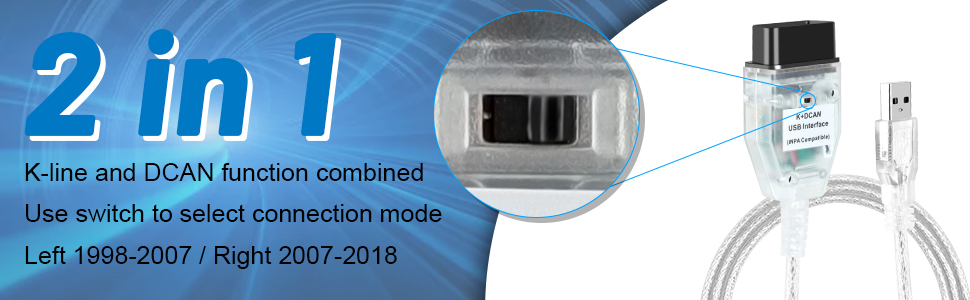
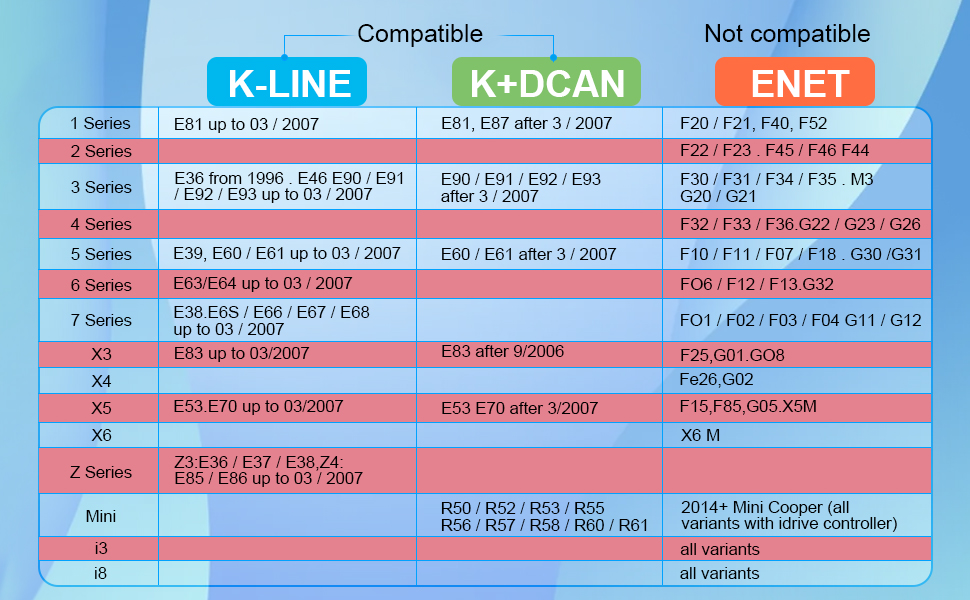
K/DCAN Cable
ISTA+ 4.57.21
- Do not bother with other versions; this version works
Setup
- Ensure .NET 4.8.1 and MS Visual C++ 2015-2019 Redistributable (x64) - 14.29.30133 are both installed.
- Extract "ISTA.rar" to C:\ (or extract and then copy ISTA directory to C:\)
- Naviagte to: "C:\ISTA\TesterGUI\bin\Release". Right click on ISTAGUI and select "Send to" > "Desktop (create shortcut)"
- From "ISTA+Standalone-4.57.21 config" folder copy "BMW" folder to "C:\ProgramData". Note that "C:\ProgramData" is hidden in explorer by default so you must manually type in the path to the navigation bar.
- From "ISTA+Standalone-4.57.21 config" folder run the "ISTA+ 4.57.21.reg" file to add registry entries to the registry.
- (DO THIS) For D-CAN users before starting ISTA navigate to "C:\ISTA\tool" and run "Switch ICOM-ENET or DCAN (com3)" then press any key. (To restore the original settings for Icom/Enet run the switch script again.)
- Ensure the DCAN USB interface is setup as COM3 with latency timer set to 1 ms (see GUIDE to ISTA+ PDF as needed).
- Add environment variable (at search bar type "environment variable" and then select "Edit System Environment Variables".
- Launch ISTA+ from Desktop shortcut.
Notes
- Initial identification scan takes 5ish minutes; be patient
Miscellaneous
Updated by 9 months ago · 7 revisions